
Settings and Preferences
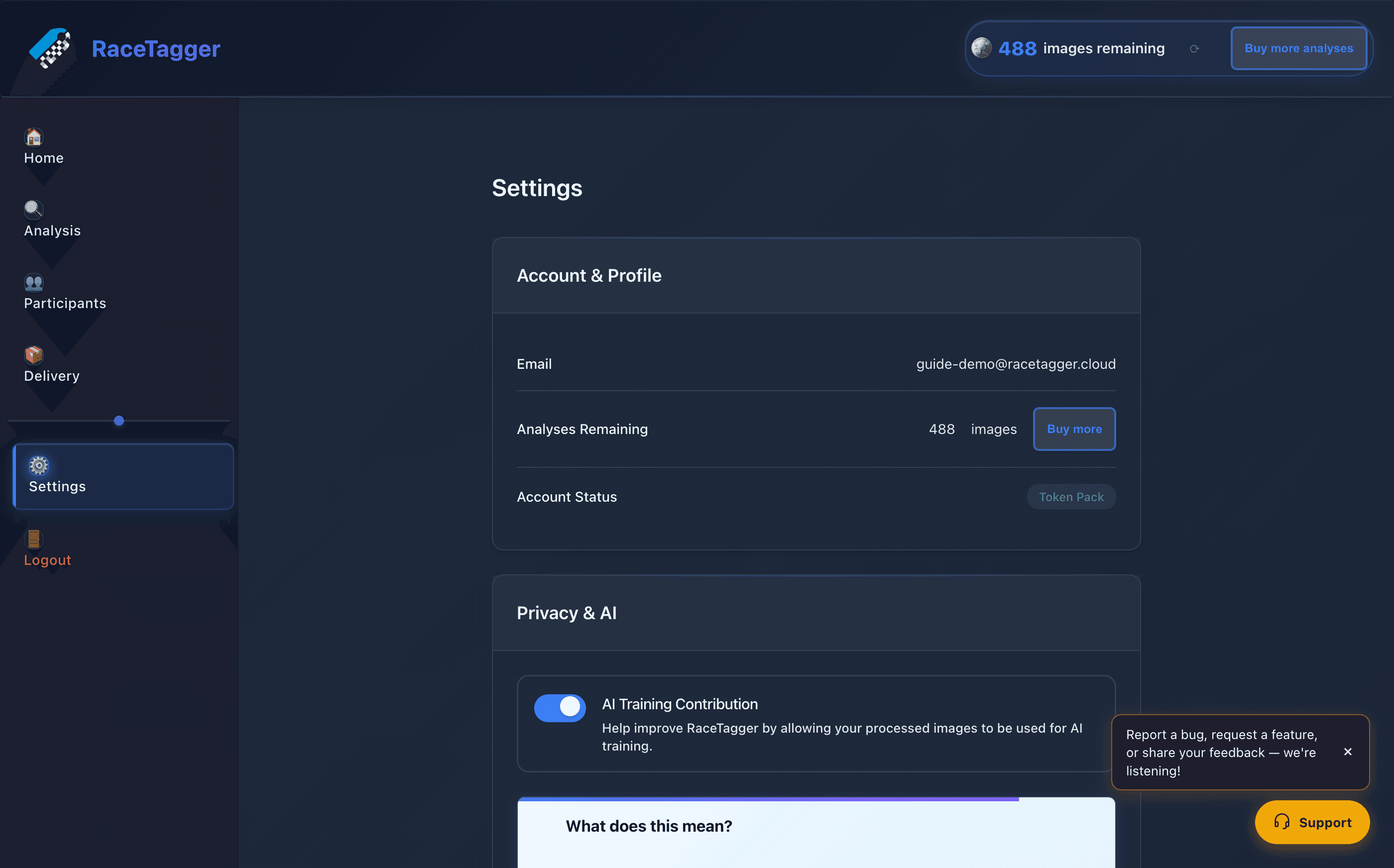
The Settings screen is the desktop app's map of account and app-wide preferences, in five cards: Account & Profile (email, remaining analyses, account status), Privacy & AI (AI training contribution, automatic error reporting, links to Privacy Policy / Terms of Service), Review (whether detection boxes are drawn on the opened photo), IPTC Pro Defaults (default behaviour and template for IPTC metadata writing — see the metadata-iptc page for what gets written and how), and About (app version, developer, website, legal, support). It is the one screen where preferences that apply across every analysis and every preset live, as opposed to per-preset settings configured elsewhere in the app.
How to use it
- 1Open Settings from the sidebar:
- 2Account & Profile: check your signed-in email, remaining Analyses (token balance), and Account Status; click Buy more to top up.
- 3Privacy & AI: toggle AI Training Contribution to allow/disallow your processed images being used to improve RaceTagger's AI (an info box explains what this means; the last-changed date is shown once you've toggled it), and toggle Automatic Error Reporting to opt in/out of anonymous crash/error reports. Use the Privacy Policy / Terms of Service links under "Learn More" to read the full documents.
- 4Review: toggle Show detection boxes on the opened photo to show/hide the numbered detection boxes drawn on a photo while reviewing results; it can also be toggled per session in the gallery with the B key. It never affects the underlying results or corrections.
- 5IPTC Pro Defaults: (PRO badge) — toggle When a face is recognized, write only that person's data to control whether a recognized portrait gets only that person's metadata or every participant linked to the number. Under Default IPTC template, click Edit template… to open the full IPTC editor, Import from XMP… to load one from a Photo Mechanic XMP file, or Clear to remove it (with a confirmation dialog); a status line shows whether a default is configured and, if so, how many fields/keywords it holds.
- 6About: check the installed Version, developer, website, and support links.
Limits and known behaviour
- Two different persistence layers, and it is not obvious from the UI
which is which. Email, token balance, account status, AI Training
Contribution and the Default IPTC template are account-level (stored in
Supabase) and follow you across machines and re-logins. The detection-box
toggle, the face-only IPTC toggle, and Automatic Error Reporting are
local to this install — they reset to their defaults on another
machine, and Automatic Error Reporting additionally resets to enabled on
every app restart on the same machine, because the toggle only sets an
in-memory flag (
ErrorTelemetryService.enabled, defaulttrue) with no persistence to disk. If a customer says they turned error reporting off and it "came back on", that's it — not a bug per se, but worth knowing. - The IPTC Pro Defaults card, its face-only toggle default (
faceOnly: true), and its behaviour-flag exclusions (writingTiming,faceScope— a global default template never carries per-preset overrides) only affect new presets and the Export & IPTC fallback; existing presets are not retroactively changed. - Default IPTC template edits require a working IPC round-trip
(
iptc-defaults-get/iptc-defaults-save); on failure the modal opens with an empty form rather than showing stale data, and the status row falls back to "Not configured" rather than guessing. - Detection-box toggle, IPTC Pro defaults (auto-write/face-only) and the
default-template mirror are
localStorage(rt-detection-overlay-enabled,iptc-pro-defaults,iptc-default-template-mirror) — clearing browser/app storage or reinstalling resets them. - Account Status shown here is derived, not a raw subscription field: the app treats the account as "active" if it has either an active subscription or a positive token balance, and labels a token-only account "Token Pack".