
Sport Category
Choosing the right sport category tells RaceTagger's AI what kind of event it's analyzing, which dramatically improves detection accuracy. Different sports display race numbers in different locations and formats — a motocross bike has side panel numbers, a runner wears a chest bib, and a race car has body panel numbers.
By selecting the correct sport category, the AI knows where to look, what format to expect, and what context clues matter. This can improve accuracy by 10-20% compared to generic detection.
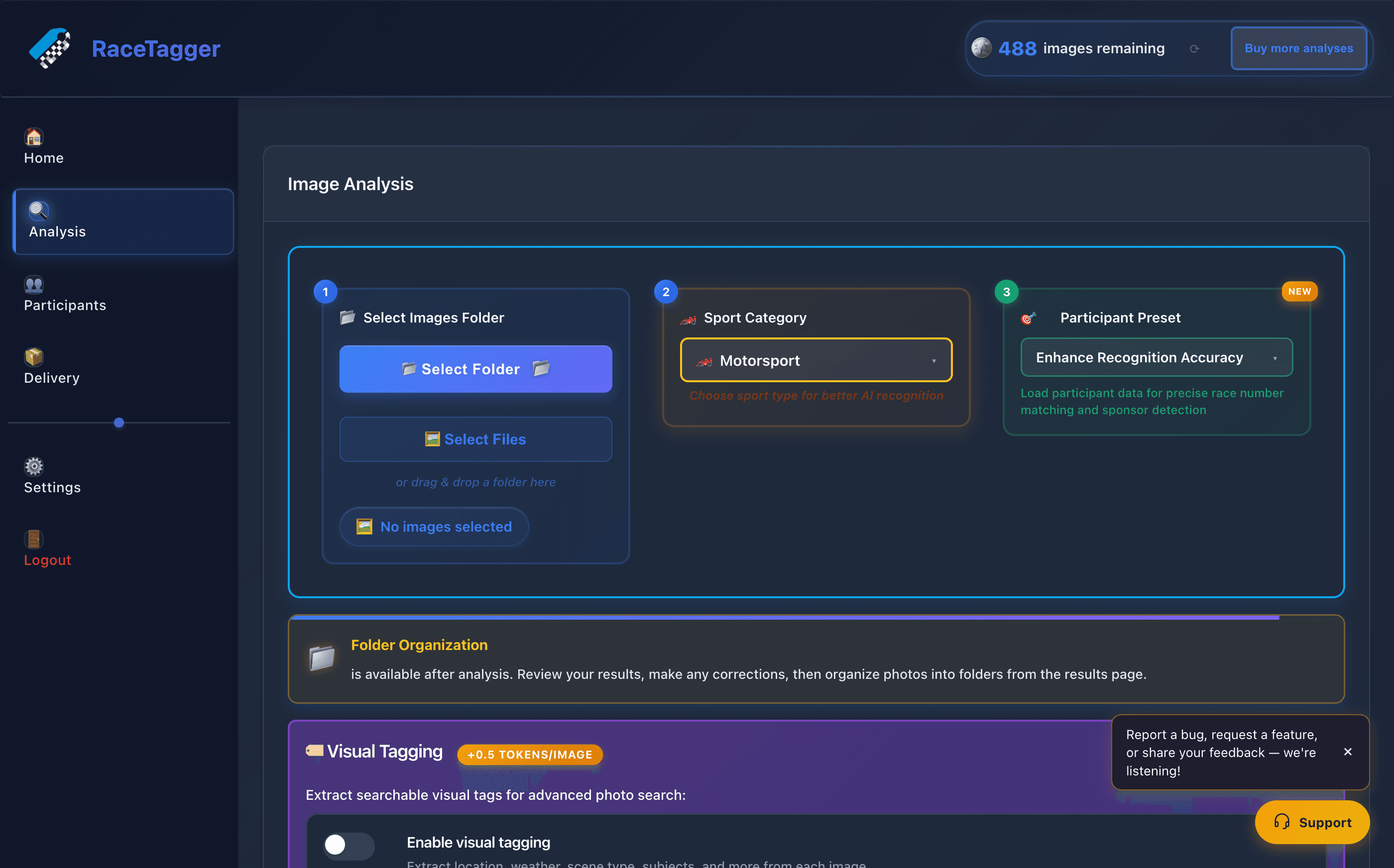
Sport Category is step 2 of setting up an analysis: it tells RaceTagger what kind of
event the photos are from (Motorsport, Running, Cycling, Motocross, Rally, …) so the
AI knows where race numbers usually sit and what to expect around them. Behind one
category code sit several things at once: the reader prompt Gemini gets for that
sport (sport_categories.ai_prompt), which detector classes the local Subject
Detector looks for, and the matching weights/thresholds used to score candidates
(race number, name, team, sponsor, vehicle/livery, face). Some categories also route
race-number reading to a per-category local ONNX model instead of the cloud reader —
marked PRO in the category picker. Categories are managed server-side in Supabase
(sport_categories table); the desktop app only reads and caches them, it does not
let a user create or edit one.
How to use it
- 1On the Analysis page, under step 2 Sport Category, open the dropdown and pick the sport for this batch (hint text…: : "Choose sport type for better AI recognition"). A PRO pill next to a category name means that category has a local ONNX number reader active.
- 2The choice is remembered automatically between app sessions (last-used analysis settings), so you don't have to…: re-pick it every batch — just change it before starting a new one if the sport is different.
- 3When creating a Participant Preset (Participants page), also set its Sport Category field: A preset only appears in the preset list when its category matches the one currently selected for analysis.
- 4If you don't see a category you expect, it may not be enabled for your installed app version yet (categories can…: require a minimum app version / a minimum Edge Function version) — updating the app can unlock it.
Limits and known behaviour
- Categories cannot be created or customized by the user — the list, the AI prompt, the matching weights and the detection routing per category all come from Supabase and are managed on the backend side.
- The categories list is cached client-side for 30 minutes (
sessionStorage) and, in the desktop main process, for 60 seconds (categoriesCache); a Refresh action exists for admin/debug use (window.refreshCategories) to force-reload both caches. - Categories are filtered by version compatibility before they're shown: a category
needs
edge_function_version <=the app's max supported Edge Function version, and the app's version number>=the category'smin_app_version. A category can therefore be invisible on an older app build even though it exists in the database. - If a category code sent to the matching engine isn't recognized, it falls back to
the
motorsportdefaults (with a console warning). - There is no "Auto Detect" option and no settable "default category" in Preferences — the app just remembers the last-used category automatically.