
Welcome & First Setup
Welcome to RaceTagger! RaceTagger is an AI-powered desktop application designed for sports photographers. It automatically detects race numbers in your photos, matches them to participants, writes metadata directly into your files, and organizes your images into folders by detected numbers. In minutes, you can process hundreds of photos that would otherwise take hours to organize manually.
RaceTagger is a desktop app for sports photographers: it detects race numbers in your
photos, matches them to participants, writes metadata into the files, and organizes the
images into folders by detected number. Before any of that you install the app, create
an account (or sign in), and land on the Home screen, which is your starting point for
every session. Running an actual analysis is covered in its own page — see
running-an-analysis.
How to use it
- 1Go to racetagger.cloud/download and pick your platform (macOS, Windows, or Linux):
- 2macOS: drag RaceTagger to Applications and open it. Recent stable builds are notarized by Apple, so Gatekeeper does not block the first launch (see Limits). Windows: run the installer and follow the prompts. Linux: extract the archive and run the executable.
- 3On first launch you land on the login screen: Click Sign Up to switch to the registration tab, or sign up on the web at racetagger.cloud instead.
- 4To create an account: enter your email, choose a password meeting the strength requirements shown live under the field, confirm it, and tick both I accept the Privacy Policy and I accept the Terms of Service (required). Click Create Account.
- 5Check your inbox (and spam folder) for the verification email and follow the link before your first sign-in:
- 6Back in the app, on the Login tab enter your email and password: Keep me signed in is ticked by default — leave it on to have the login screen pre-fill your email and password next time you're logged out (session expiry or explicit logout); untick it to stop RaceTagger from saving them. Click Sign In.
- 7If sign-in fails with invalid credentials, RaceTagger shows a hint that the account may not be activated yet, with a…: link to reset the password on racetagger.cloud. Forgot your password? opens the same web-based reset flow in your browser.
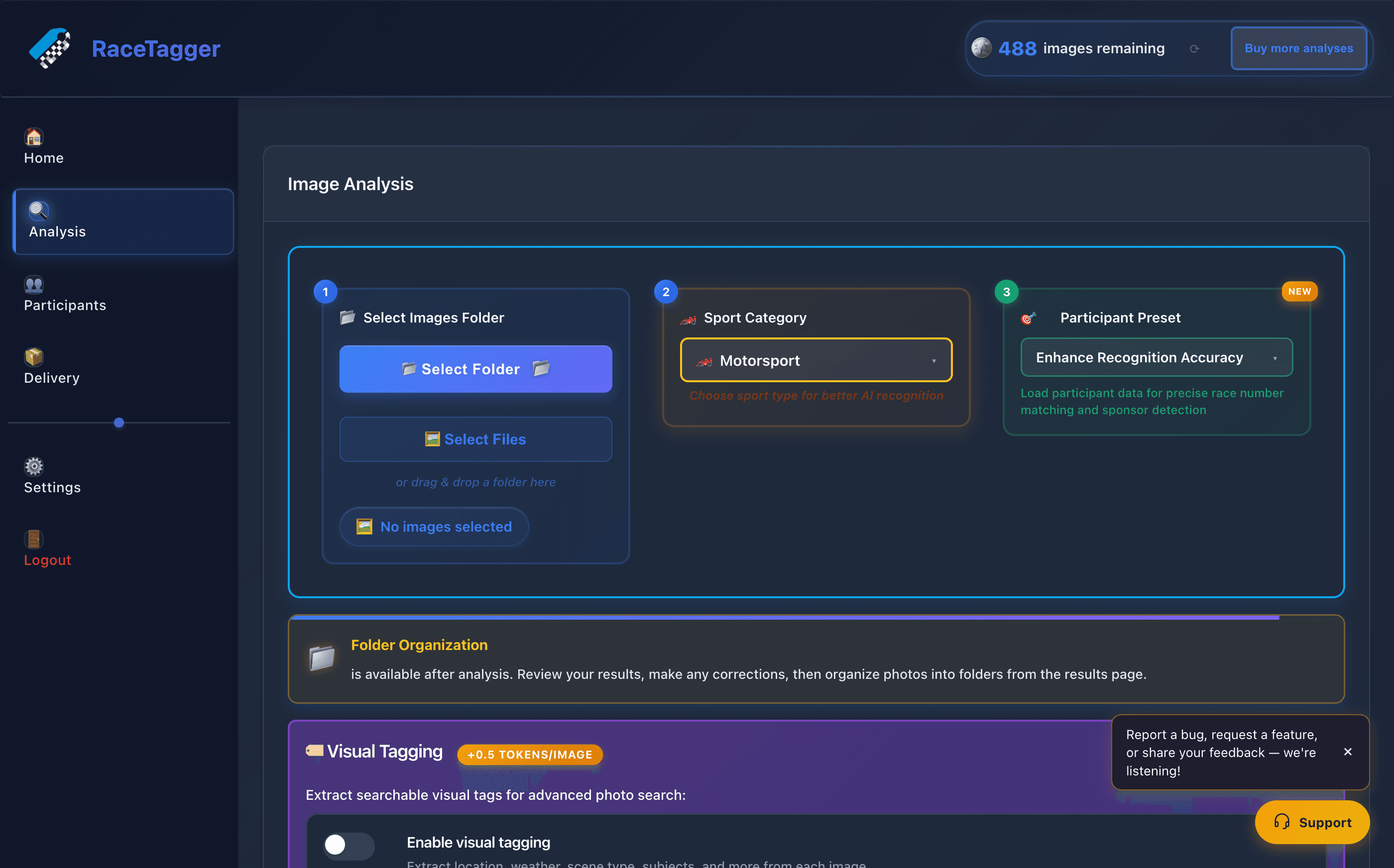
- 8Once signed in you land on Home: a welcome header with your photo count and number of executions over the last 30 days, a Start New Analysis button, and a Recent Analyses list of past executions you can click into for detailed results. From here, go to Analysis to run your first job (see running-an-analysis).
Limits and known behaviour
- "Keep me signed in" stores credentials locally, encrypted with the OS credential
vault (Electron
safeStorage→ Windows DPAPI / macOS Keychain / Linux libsecret) in aremember.encfile under the app's user-data folder. If the OS vault isn't available (e.g. a Linux box with no keyring), nothing is saved — the checkbox has no effect and the login screen just won't pre-fill. - The saved credentials only pre-fill empty fields on the login screen after a logout or a session expiry; the actual signed-in session is restored automatically across app restarts regardless of this setting.
- Password requirements at sign-up: at least 8 characters, one uppercase letter, one lowercase letter, and one number.
- macOS Gatekeeper: builds have been notarized and Gatekeeper warnings eliminated for fresh installs since 1.0.7.
- Every new account starts with a signup bonus of free tokens (exact amount not documented here — see racetagger.cloud for current figures).