
The Complete Race Photo Organization Workflow
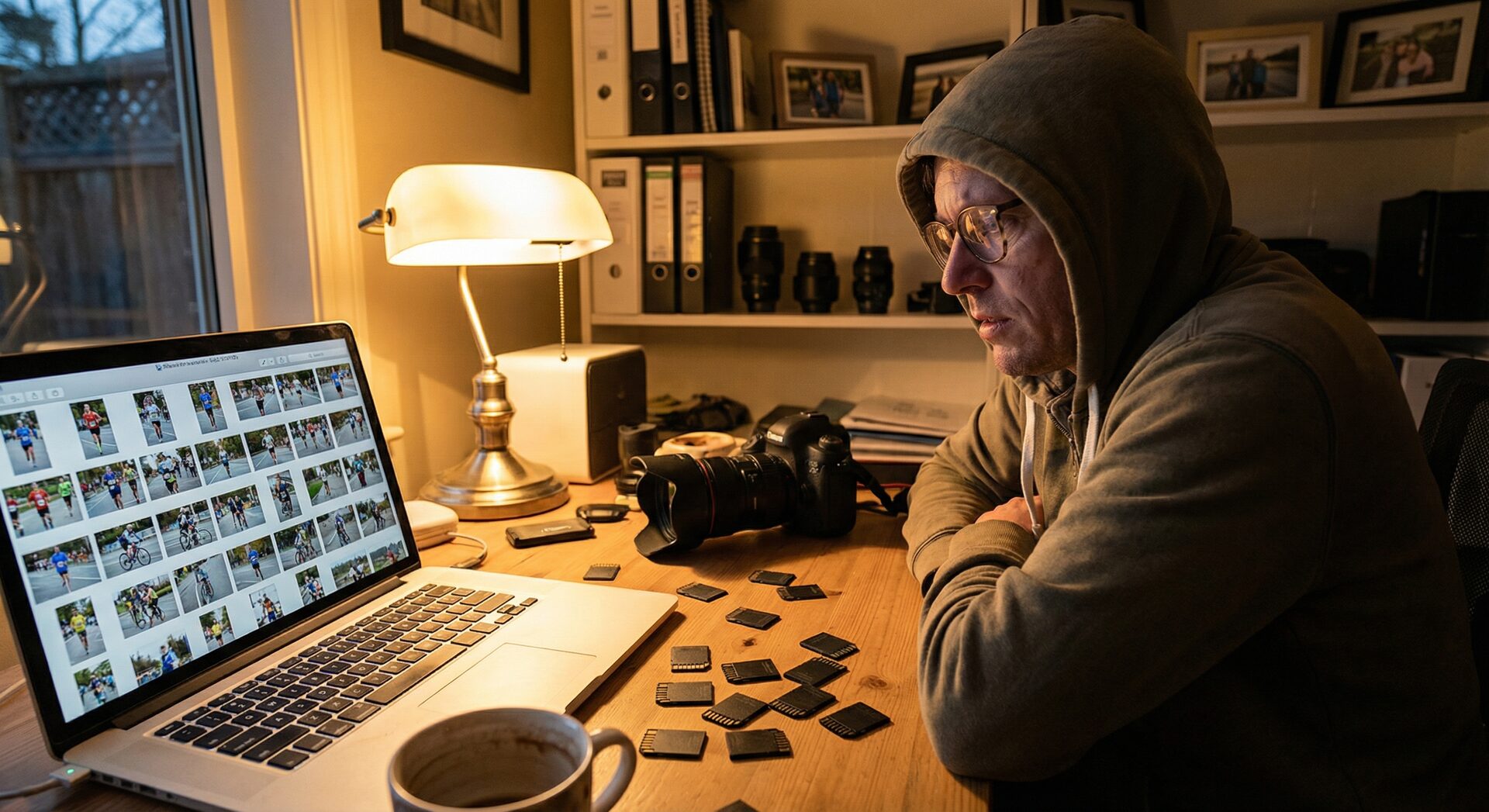
Professional race photo organization follows a proven 6-phase workflow:
- Import and Backup — Secure your files immediately
- Culling — Select keepers from rejects quickly
- Tagging — Add metadata for searchability
- Organization — Structure files for easy access
- Editing — Process your selected images
- Delivery — Export and share with clients
Each phase builds on the previous one. Skip a step, and you'll pay for it later with lost time or frustrated clients.
Phase 1: Import and Backup (15 Minutes)
Immediate Transfer Protocol
The moment you return from an event—or during breaks if possible—start your import process:
Step 1: Create folder structure
2026-02-15_Monza_F1/
├── 01_RAW_Import/
├── 02_Selected/
├── 03_Edited/
└── 04_Delivery/
Step 2: Copy from cards to computer
- Use a fast card reader (USB 3.0 or faster)
- Copy all files before doing anything else
- Verify file count matches what your camera recorded
Step 3: Create immediate backup
- Copy entire folder to external SSD
- This is your insurance policy—never skip it
- Don't format cards until backup is verified
Import Tools Comparison
| Tool | Speed | Features | Best For |
|---|---|---|---|
| Photo Mechanic | ⭐⭐⭐⭐⭐ | Fastest thumbnails, IPTC templates | Speed-critical workflows |
| Lightroom | ⭐⭐⭐⭐ | Integrated editing, cloud sync | Adobe ecosystem users |
| Capture One | ⭐⭐⭐⭐ | Excellent RAW processing | High-end commercial work |
| Finder/Explorer | ⭐⭐⭐ | Free, simple | Basic organization |
Phase 2: Culling (30-60 Minutes)
Culling is where you separate deliverable photos from the rejects. Professional photographers are ruthless here—the faster you delete, the faster you finish.
The Three-Pass Culling Method
Pass 1: Technical failures (10 minutes)
- Delete: Out of focus, motion blur, blown highlights
- Delete: Bad exposure (unless recoverable)
- Delete: Obvious composition failures
- Goal: Remove 30-40% of photos
Pass 2: Content evaluation (20 minutes)
- Flag: Good technical quality, interesting moment
- Delete: Boring poses, closed eyes, no story
- Goal: Keep only emotionally engaging images
Pass 3: Final selection (20 minutes)
- Rate remaining photos (5-star system)
- Aim for: 4-5 stars = edit and deliver
- 3 stars = maybe deliver if needed
- Below 3 = archive only
Culling Efficiency Tips
Keyboard shortcuts are essential:
- Photo Mechanic: Arrow keys to navigate, Delete to reject
- Lightroom: X to flag as reject, P to flag as pick
- Customize shortcuts to match your muscle memory
Cull chronologically:
- Don't jump around in the timeline
- Maintains context and rhythm
- Faster decision-making
Use a large monitor:
- 27"+ screen shows focus quality better
- Dual monitors: culling on one, reference on other
Typical Culling Results
| Event Type | Photos Shot | After Culling | Keep Rate |
|---|---|---|---|
| Formula 1 Race | 4,000 | 400-600 | 10-15% |
| Marathon | 8,000 | 800-1,200 | 10-15% |
| Gran Fondo | 5,000 | 500-750 | 10-15% |
| Club Race | 2,000 | 200-400 | 10-20% |
Phase 3: Tagging — The Critical Difference
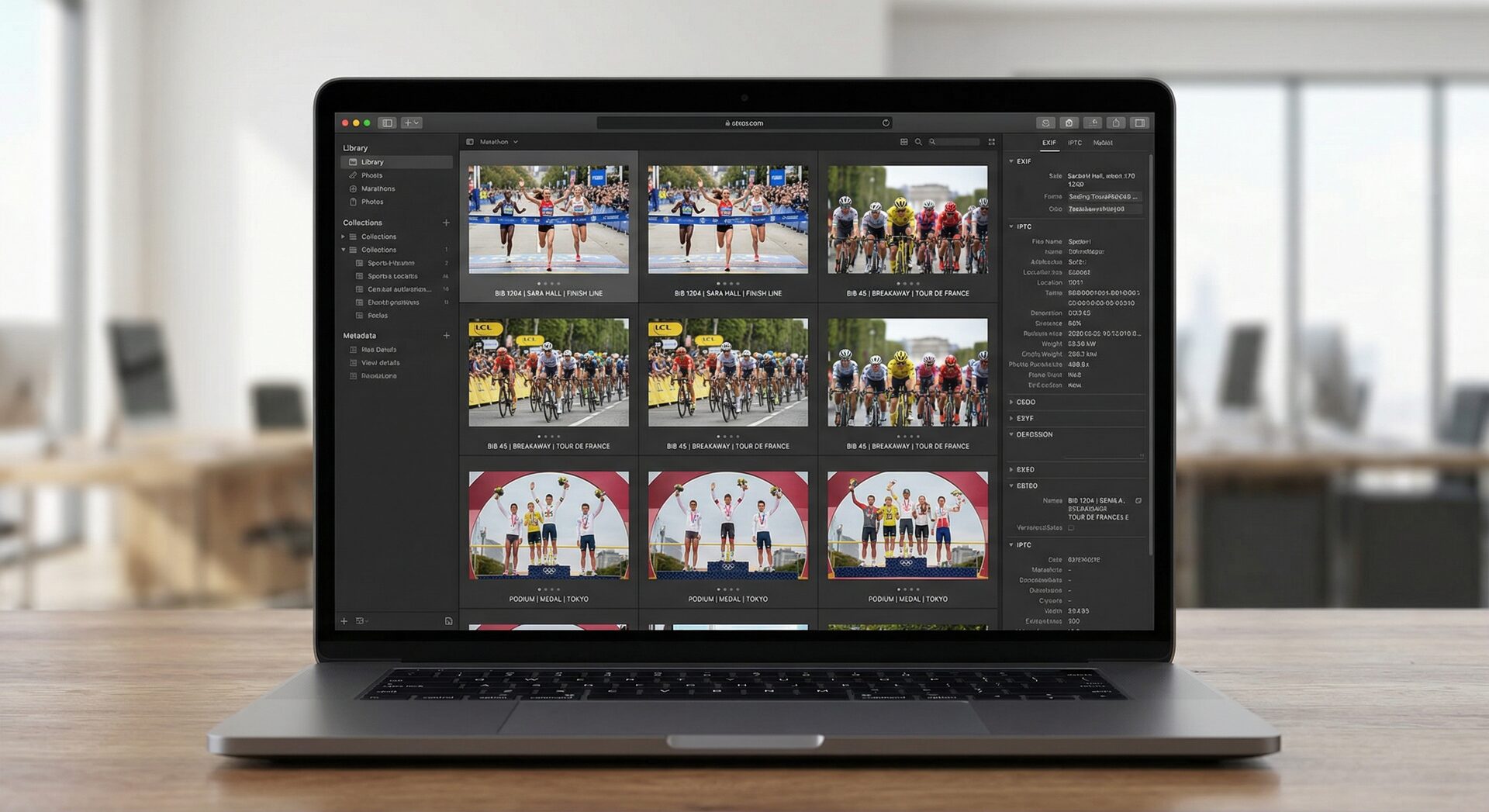
This is where most photographers lose hours—or save them. Proper tagging transforms a disorganized folder of images into a searchable, deliverable product.
What is Photo Tagging?
Photo tagging adds metadata to your image files:
IPTC Keywords: Searchable tags embedded in the file
- Participant names
- Race numbers
- Event names
- Team names
- Categories
EXIF Data: Camera-generated information
- Camera settings
- Date/time
- GPS location (if enabled)
XMP Sidecars: Additional metadata files
- Edit history
- Ratings and labels
- Custom metadata fields
Manual Tagging (Traditional Method)
Process:
- Open each photo individually
- Read the race number
- Look up participant in entry list
- Type name and number into metadata fields
- Repeat for every photo
Time required: 2-3 minutes per photo For 500 photos: 15-25 hours
AI-Powered Tagging (Modern Method)
Process:
- Upload participant list (CSV)
- Run AI detection on all photos
- AI identifies race numbers automatically
- Matches to participant names
- Embeds metadata in batch
Time required: 20-30 minutes for 500 photos Plus review: 10-15 minutes for flagged items
Best Practices for Race Photo Tagging
Use consistent keyword formats:
- Good:
Lewis Hamilton,Car 44,Mercedes F1 - Bad:
hamilton,car44,mercedes-f1-team
Include multiple identifiers:
- Driver name + car number
- Team name + category
- Event name + year
Plan for searchability:
- What will clients search for?
- What tags help you find photos later?
- What metadata do agencies require?
Phase 4: Organization — Folder Structure Strategies
How you organize files affects everything from editing speed to client satisfaction. Choose a structure that matches your delivery needs.
Strategy 1: By Participant (Best for Individual Sales)
Delivery/
├── 44_Lewis_Hamilton/
│   ├── HAM_001.jpg
│   ├── HAM_002.jpg
│   └── HAM_003.jpg
├── 63_George_Russell/
│   ├── RUS_001.jpg
│   └── RUS_002.jpg
└── 01_Max_Verstappen/
    └── VER_001.jpg
Advantages:
- Easy for clients to find their photos
- Simple delivery process
- Works with all gallery platforms
Best for: Gran fondo, marathon, individual athlete photography
Strategy 2: By Session/Event Segment (Best for Media)
Delivery/
├── Practice/
│   ├── Session1/
│   └── Session2/
├── Qualifying/
├── Race/
│   ├── Start/
│   ├── Mid_Race/
│   └── Finish/
└── Podium/
Advantages:
- Tells the story chronologically
- Easy for media to find specific moments
- Logical narrative structure
Best for: Motorsport media coverage, event documentation
Strategy 3: Hybrid Approach (Best for Complex Events)
Delivery/
├── Highlights/
│   └── Best shots across all sessions
├── By_Driver/
│   ├── Hamilton/
│   ├── Russell/
│   └── Verstappen/
└── By_Session/
    ├── Practice/
    ├── Qualifying/
    └── Race/
Advantages:
- Multiple access paths to same photos
- Serves different client needs
- Maximum flexibility
Best for: Large events with diverse client requirements
Phase 5: Editing (1-3 Hours)
With your photos culled and organized, editing becomes efficient and focused.
Editing Workflow
Step 1: Import to editing software
- Lightroom, Capture One, or your preferred tool
- Metadata already embedded from tagging phase
- Filter by participant, session, or rating
Step 2: Apply global adjustments
- Create and apply base preset
- Correct exposure, white balance, lens corrections
- Batch apply to similar lighting conditions
Step 3: Individual adjustments
- Fine-tune each selected image
- Local adjustments for problem areas
- Crop for composition if needed
Step 4: Consistency check
- Review gallery as a whole
- Ensure consistent color and exposure
- Make final tweaks
Time-Saving Editing Tips
Use presets liberally:
- Develop a race photography preset pack
- One-click base corrections
- Consistent look across events
Edit by lighting condition:
- Group cloudy shots together
- Group sunny shots together
- Batch similar corrections
Outsource if needed:
- Color correction services can handle basic edits
- You focus on selection and final adjustments
- Cost-effective for high volumes
Phase 6: Delivery (30 Minutes)
The final phase—getting photos to clients professionally and efficiently.
Export Settings by Use Case
Online galleries:
- Format: JPEG
- Quality: 80-85%
- Size: 2048px long edge
- Color space: sRGB
- Metadata: Include keywords and copyright
Print orders:
- Format: JPEG or TIFF
- Quality: 95-100%
- Size: Full resolution
- Color space: Adobe RGB
- Sharpening: Output-specific
Social media:
- Format: JPEG
- Quality: 75-80%
- Size: Platform-optimized (1080px for Instagram)
- Color space: sRGB
Delivery Methods
Cloud galleries (recommended):
- Pixieset, Zenfolio, SmugMug
- Professional presentation
- Built-in sales capabilities
- Client selects and downloads
Direct transfer:
- Dropbox, Google Drive, WeTransfer
- Good for team/media clients
- Less polished presentation
Physical media:
- USB drives for premium clients
- Branded drives for professional touch
- Include both web and print resolutions
Complete Workflow Time Comparison
| Phase | Traditional Workflow | Optimized Workflow | Time Saved |
|---|---|---|---|
| Import/Backup | 15 min | 15 min | 0 min |
| Culling | 60 min | 45 min | 15 min |
| Tagging | 600 min (10 hrs) | 30 min | 570 min |
| Organization | 60 min | 15 min | 45 min |
| Editing | 180 min (3 hrs) | 120 min (2 hrs) | 60 min |
| Delivery | 30 min | 30 min | 0 min |
| Total | 945 min (15.75 hrs) | 255 min (4.25 hrs) | 690 min (11.5 hrs) |
Result: 73% time reduction with optimized workflow
Tools for Each Phase
Import & Backup
- Photo Mechanic: Fastest, industry standard
- Hedge: Specialized backup verification
- ChronoSync: Automated backup syncing
Culling
- Photo Mechanic: Speed king
- Lightroom: Integrated workflow
- Narrative Select: AI-assisted culling
Tagging
- RaceTagger: AI race number detection
- Photo Mechanic: Code replacement
- Manual: Lightroom/Bridge keyword entry
Organization
- Adobe Bridge: Visual file management
- Lightroom: Catalog-based organization
- Finder/Explorer: Basic file operations
Editing
- Lightroom Classic: Industry standard
- Capture One: Superior color handling
- Luminar: AI-enhanced editing
Delivery
- Pixieset: Best for client galleries
- PhotoShelter: Agency-focused
- Custom website: Full control
Common Organization Mistakes to Avoid
Mistake 1: Inconsistent Naming
Problem: IMG_0001.jpg, edited_1.jpg, final_version.jpg
Solution: Use consistent naming: Event_Date_Sequence.jpg
Mistake 2: No Backup Strategy
Problem: Single copy on laptop Solution: Immediate backup to external drive + cloud
Mistake 3: Over-Tagging
Problem: 50 keywords per photo, many irrelevant Solution: Focus on searchable, relevant tags
Mistake 4: No Version Control
Problem: photo_edit1.jpg, photo_edit2_FINAL.jpg, photo_edit2_FINAL_v2.jpg
Solution: Use non-destructive editing, keep originals
Mistake 5: Poor Folder Structure
Problem: Everything in one folder Solution: Clear hierarchy: Date → Event → Session → Type
Advanced Organization Tips
For High-Volume Photographers
Automate with scripts:
- Auto-sort by date/time
- Batch rename on import
- Automatic backup triggers
Use database software:
- Lightroom catalogs for searchable archives
- Photo Mechanic catalogs for quick access
- Custom databases for specific needs
For Multi-Photographer Teams
Standardized workflows:
- Same folder structure for everyone
- Shared keyword dictionaries
- Centralized delivery system
Collaboration tools:
- Shared cloud storage
- Version control systems
- Communication protocols
Getting Started: Your First Organized Event
Week Before Event
- Set up folder templates
- Prepare CSV with participant data
- Test backup workflow
- Configure software presets
Day of Event
- Format cards before shooting
- Shoot with organization in mind
- Backup during breaks if possible
Post-Event Checklist
- Import and verify all files
- Create backup immediately
- Cull ruthlessly
- Tag with AI or manual method
- Organize into delivery structure
- Edit and export
- Deliver to clients
- Archive with 3-2-1 rule
Bottom Line
Organizing race photos efficiently separates professional photographers from enthusiasts. The investment in workflow optimization pays dividends:
- Time saved: 10+ hours per event
- Client satisfaction: Faster delivery
- Business growth: Handle more events
- Creative focus: Less admin, more photography
Start with the basics: consistent folder structure, reliable backup, and efficient culling. Add AI tagging to eliminate the biggest time sink. Refine your workflow with each event.
Transform Your Workflow Today
Join 200+ professional race photographers using RaceTagger to cut tagging time by 90%. Free early access available.
Get Early Access →Related Guides
- Complete Motorsport Photography Workflow
- Photo Mechanic + AI Tagging Workflow
- AI Race Photo Tagging Explained
Questions about organizing your race photos? Email us at info@racetagger.cloud